Why I stopped retyping bids
As a field inspector I used to copy approved WDO repairs into a separate document, collect photos in another folder, then type project instructions and pricing into a Word template. It worked, but it wasted office time and introduced transcription errors. Inspection Authority's affiliate/subcontractor proposal workflow removes the repetitive assembly while keeping me fully in control: I choose the approved items, confirm the scope and price, add conditions, preview the branded proposal, then send a single link for the contractor to review and sign.
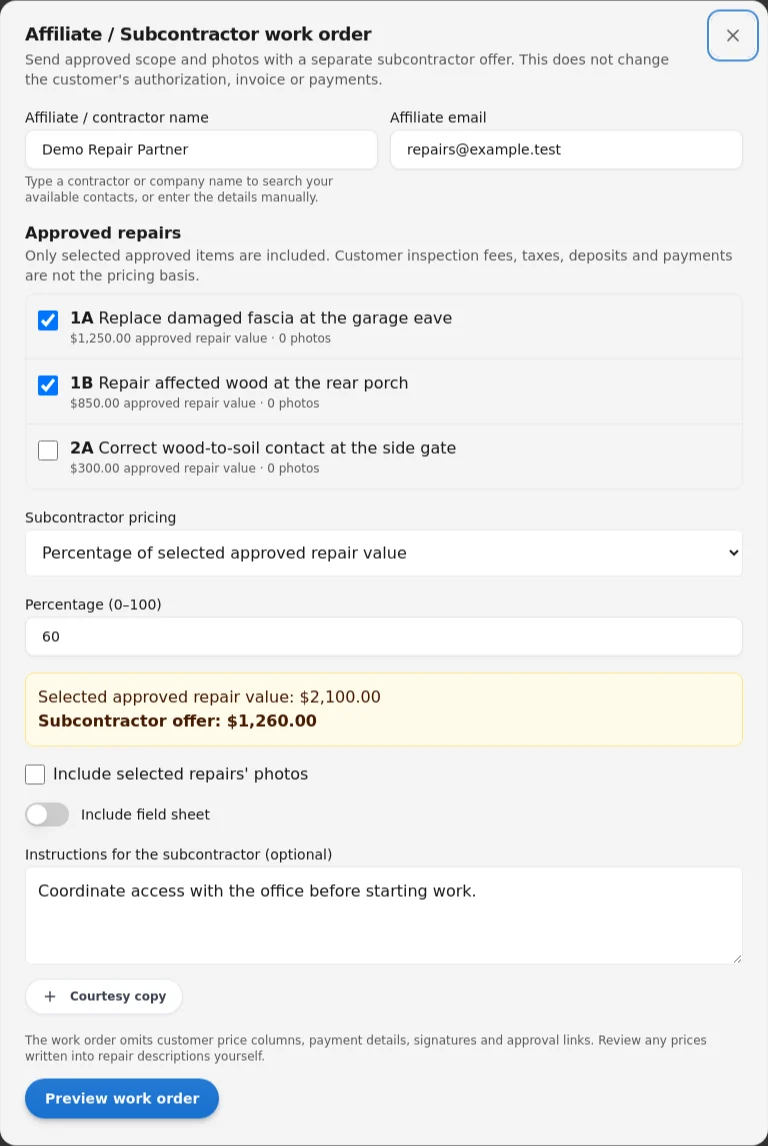
Step-by-step walkthrough: what I actually do
1) Start from customer-approved WDO repairs and open the Affiliate / Subcontractor work order
In the work order I open the affiliate/subcontractor proposal screen from the inspection that already shows the customer's approved WDO repairs. I either pick an existing contractor contact from my address book or enter the contractor/company name and email if this is a one-off. This begins a new subcontractor proposal tied to that inspection—you never drag the full report into the contractor workflow.
2) Select only the approved repairs being assigned
I check the boxes next to the specific approved repairs I want the contractor to perform. The system carries those findings—with their descriptions and locations—straight into the draft proposal. Important: this is an assignment of selected approved repairs, not sending the entire inspection report or work authorization to the contractor. This avoids exposing unrelated items and keeps the scope focused.
3) Choose how to offer payment to the subcontractor
Before sending I set the subcontractor offer. Inspection Authority gives three options:
- Percentage of the selected approved repair value (e.g., 65% of the chosen items).
- Fixed dollar amount for the selected work (e.g., $1,200 for the bundle of items).
- Hide pricing so the contractor sees the scope and signs without a shown fee.
Note: customer inspection fees, taxes, deposits or collected payments are not used as the contractor pricing base. I always avoid implying the contractor can or should see the customer's full financial history. This workflow communicates only the offered compensation for the selected scope.
4) Include the selected repairs' photos and optional field sheet
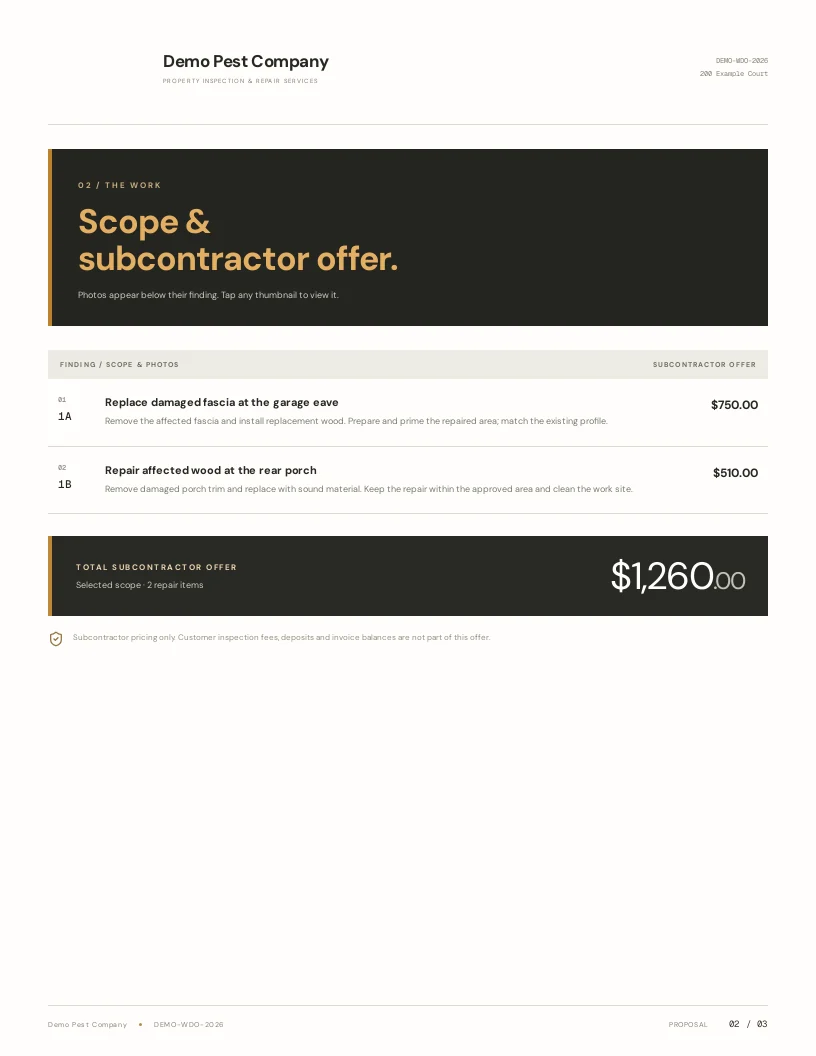
Photos I took during inspection are available next to each finding. I choose to include relevant photos; thumbnails sit beneath each finding in the online proposal, support multiple images, and open in a larger lightbox. That single placement reduces separate photo emails and follow-up calls asking “which joist are you referring to?”
There’s also an optional Include field sheet toggle. If the inspection has a field sheet available, I can attach it to the proposal; if a field sheet was never created, the toggle does nothing. This avoids creating “missing” documents while still letting me attach supporting field notes when I have them.
5) Add project-specific instructions and conditions, then preview
I type project instructions (access, staging, permit scope limits, required permits, warranty notes) and any conditions the contractor needs to know. Before sending I always preview the assembled, company-branded proposal to verify each selected finding, the photos, the offer method, and the language of the conditions. Automation assembles the document, but it doesn’t replace my review or professional responsibility.
6) Contractor receives a review-and-sign link
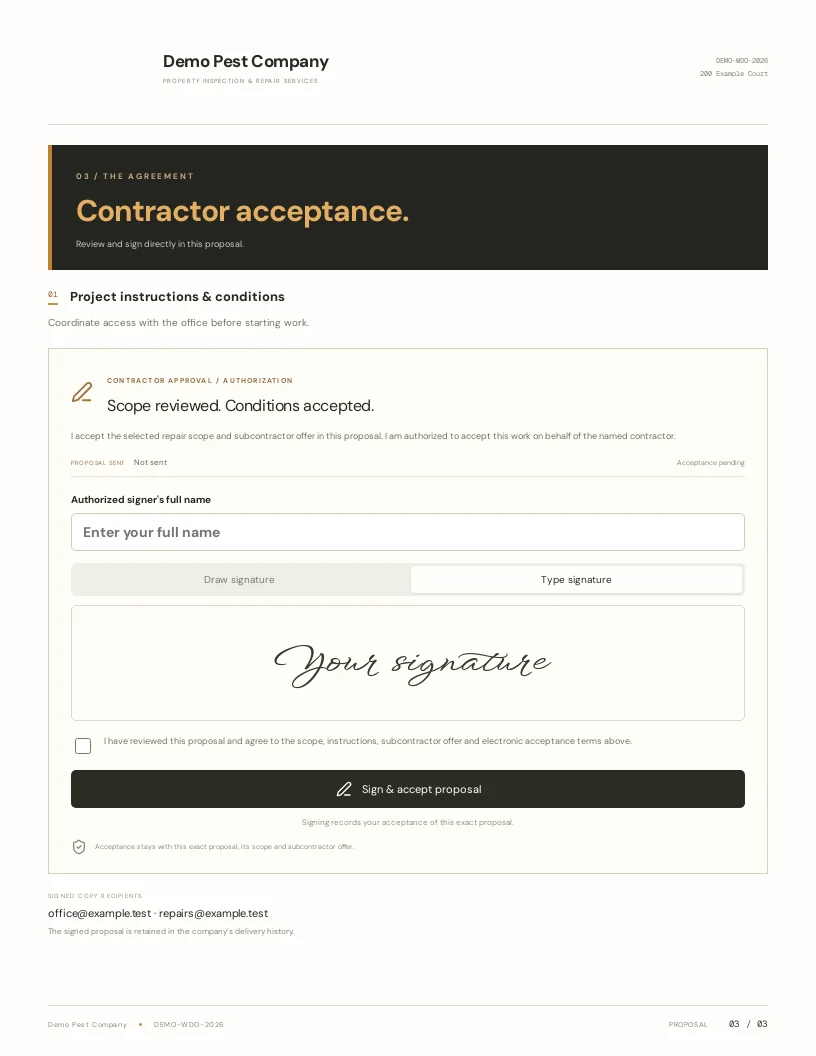
When I send the proposal the contractor gets a single online link to review the scope and accept the offer. Scope and electronic acceptance sit in the same online document, so there’s no separate unsigned PDF attachment competing with the signing link. Default signature type is typed; a drawn signature option is available if the contractor prefers. The contractor explicitly reviews the terms and accepts online.
7) Recordkeeping: sent and accepted timestamps, signed copy delivery
The system records sent and accepted date/times on the work order. A signed proposal is retained on the inspection record and an email with the signed copy is attempted to both parties. I do not assume inbox placement—delivery is attempted, not guaranteed—but the acceptance status is visible near the top of the work-order form and I can resend the current proposal if the contractor loses the invitation.
Hypothetical field example
Here’s a real-feeling example I use in training: On a house I documented several WDO repairs that the customer approved. In the inspection report those findings are:
- Replace 8' of rotted sill plate at the northeast crawlspace opening — photo A/B attached.
- Treat and sister two compromised floor joists in the laundry room — photo C attached.
- Replace damaged skirting board at the exterior crawlspace access — photo D attached.
I open the Affiliate work order, select those three approved items, and include the attached photos for each finding. I set a fixed subcontractor offer of $1,200 for the combined selected work, add access instructions (“Lockbox code 4321; gate on the right; pets kenneled”), and add two conditions about site cleanup and permit responsibility. I preview the branded proposal, confirm the images open in the lightbox for clarity, and send the link to the contractor.
What is reused: the approved findings, the descriptions, and the inspection photos. What I still decide: which items to assign, the offer amount or percentage, any access or permit notes, and final review of the language.
Before / after comparison
| Before (manual) | After (Inspection Authority) |
|---|---|
| Retype scope into Word, risk transcription errors | Selected approved items auto-populate the proposal |
| Collect photos, email separately to contractor | Photos live under each matching finding; open in lightbox |
| Manually format company-branded proposal | Preview a branded assembled proposal ready to send |
| Chase a printed or emailed signature | Inline electronic acceptance recorded on the work order |
| Search inbox threads for acceptance | Acceptance status and timestamps retained on the record |
Contractor acceptance does not equal customer authorization
This is important in practice: when a contractor accepts the subcontractor proposal they are agreeing to perform the selected scope for the offer you set. They are not signing for the customer, changing the customer’s charges, collecting payment, or marking repairs complete. Customer work authorizations and payments remain separate—inspectors must still secure the customer's authorization and payment as their business requires.
Practical close
In short: the affiliate/subcontractor workflow reduces office rework and clarifies handoff without removing your oversight. You reuse the WDO findings and photos you already documented, set the scope and compensation, preview a branded proposal, and send a single review-and-sign link. That saves time that I now use for inspections and coordinating the actual repairs.
Try it: If you want to test this workflow, Inspection Authority offers a 10-day free trial—no credit card. The Termite/WDO module is required for full affiliate/subcontractor features.
See it in the field, not a sales deck
Inspection Authority was built by a Certified Master Inspector who still inspects every week. Home inspections, termite/WDO reports, recurring pest-control billing, and true offline mode — in one app.